Key Takeaways
- Adobe Photoshop still sets the professional standard, and its AI tools are the real reason to keep paying a subscription.
- Affinity is now free. After Canva’s acquisition, the unified Affinity app costs nothing — only its AI features sit behind a paid Canva plan.
- GIMP 3.2 finally added non-destructive layers, closing one of the biggest gaps with paid rivals.
- Free tools are genuinely excellent now. GIMP, Krita, and Photopea cover most professional needs at zero cost.
- High-volume sellers often save more by outsourcing tedious cutouts and background removal than by editing in-house.
Best Picks at a Glance
- Best overall: Adobe Photoshop
- Best Photoshop alternative: Affinity
- Best free desktop editor: GIMP
- Best for digital painting: Krita
- Best browser tool: Photopea
- Best for Mac: Pixelmator Pro
- Best for traditional art: Corel Painter
- Best for beginners: Paint.NET and Pixlr
How We Chose These Tools
We compared each tool on five criteria: platform support (Windows, macOS, Linux, iPad, browser), core feature set (layers, masks, RAW handling, AI tools), pricing model and real three-year cost, user interface complexity relative to your level of expertise, and output quality on two benchmark tasks — skin retouching and product cutouts. Every pick is actively maintained in 2026, and all prices were re-checked against official sources in July 2026.
What Is Raster Graphics Software?

Raster vs Vector Graphics: What’s the Difference?
| Raster graphics | Vector graphics | |
|---|---|---|
| Built from | Pixels (a fixed grid of colored squares) | Math paths (points, lines, curves) |
| Scaling behavior | Resolution-dependent; enlarging causes blur/pixelation | Infinitely scalable with no quality loss |
| Best for | Photos, digital paintings, web images, composites | Logos, icons, typography, print at any size |
| Common file types | JPEG, PNG, PSD, TIFF, WebP, GIF | SVG, EPS, AI, PDF (vector layers) |
| Typical software | Photoshop, GIMP, Affinity (Pixel studio), Krita | Illustrator, Inkscape, Affinity (Vector studio) |
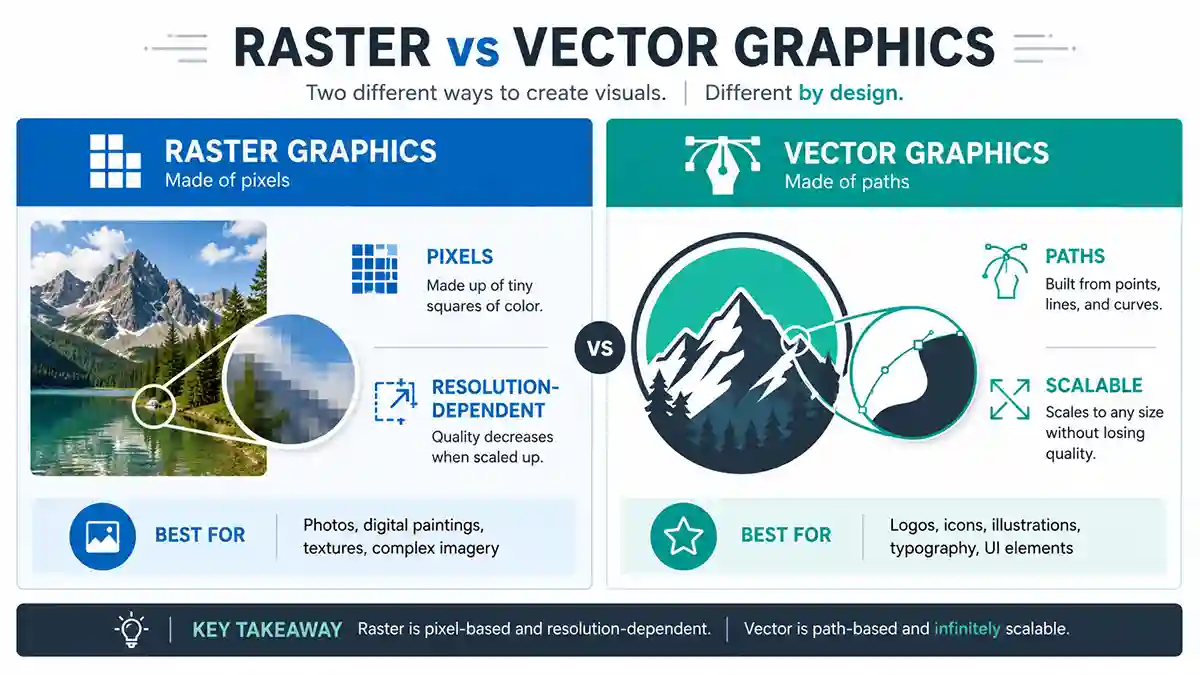
The difference between raster and vector graphics comes down to what the file stores. A raster image records a color for every pixel, so its detail is fixed at capture or creation. A vector image records mathematical instructions — “draw a curve from here to here” — so it can be redrawn perfectly at any size. That’s why logos and icons should live as vectors, while photographs can only be raster.
To answer the classic file questions: PNG is not a vector — it’s raster, like JPEG. SVG, EPS, and AI are vector formats. If you need a pixel-based logo rebuilt as crisp, scalable vector paths, that’s exactly what a raster-to-vector service does — you can see before/after examples in these raster-to-vector samples.
Raster Graphics: Strengths and Limitations
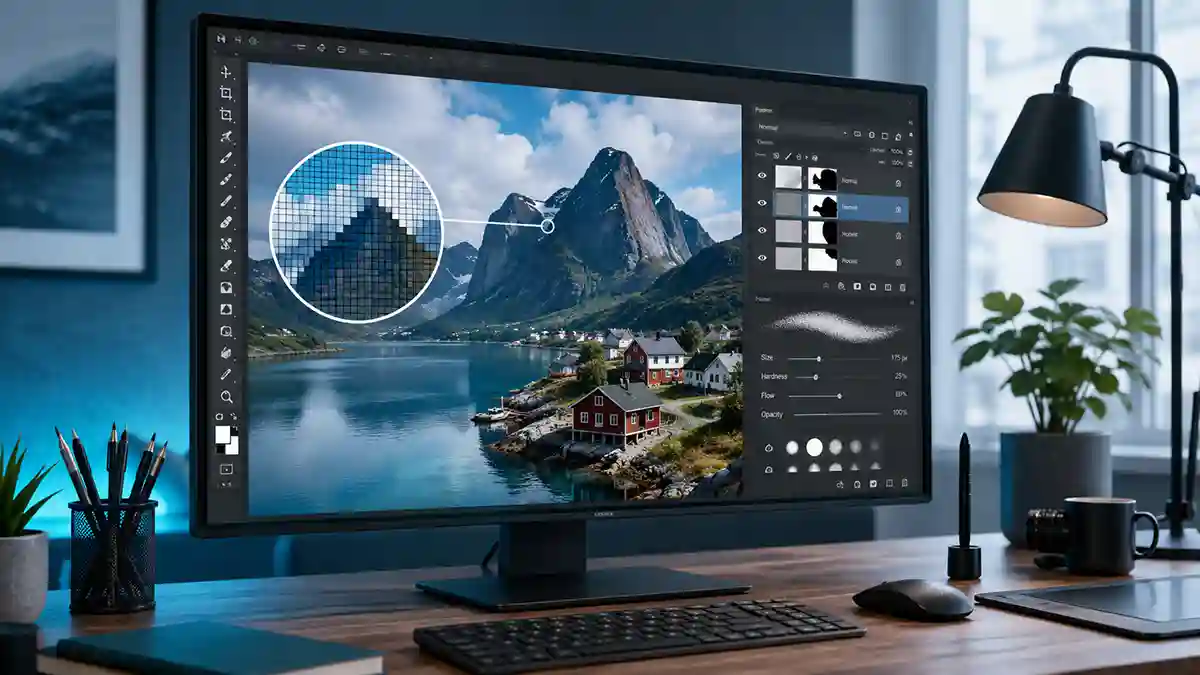
The great advantage of using a raster graphic is realism. Because every pixel carries its own color, raster images capture continuous tone — subtle skin gradients, soft shadows, textured brushwork — that vector paths can’t reproduce. That’s why raster images are best used for photography, digital painting, and any artwork with rich, organic detail, and why photo editors are raster tools by definition.
The trade-offs are structural. Raster files are resolution-dependent: scale one up and quality visibly degrades. File size grows with pixel dimensions, so print-resolution images get heavy. When you need one design at many sizes — logos, signage, embroidery — vector is the better format, and it’s worth knowing when to use raster or vector graphics software before you start.
Best Raster Graphics Software at a Glance
Here’s the full raster graphics software list compared in one place — free and paid, desktop and browser, across Windows, Mac, and Linux. Prices verified July 2026; details, strengths, and caveats for each tool follow in the reviews below.
| Tool | Price (2026) | Platforms | Best for | AI tools |
|---|---|---|---|---|
| Adobe Photoshop | $22.99/mo annual or $34.49 month-to-month | Windows, macOS, iPad, web | The all-round professional standard | Generative Fill, Firefly, Select Subject |
| Affinity by Canva | Free; AI unlocks with Canva Pro ($120/yr) | Windows, macOS; iPad pending | Free Photoshop alternative | Optional Generative Fill/Expand via Canva |
| GIMP | Free, open source | Windows, macOS, Linux | Free desktop power users | None built in; third-party plugins available |
| Krita | Free; around $14.99 optional Steam build | Windows, macOS, Linux | Digital painting | Minimal by design |
| Photopea | Free with ads; $5/mo or $50/yr ad-free | Any browser | Editing PSDs online | AI credits on Premium |
| Pixelmator Pro | $49.99 one-time for Mac or Apple Creator Studio $12.99/mo | macOS; iPad subscription | Mac-native editing | ML tools; generative AI in subscription version |
| Corel Painter + PHOTO-PAINT | One-time license or CorelDRAW suite subscription | Windows, macOS | Traditional-media art | Minimal |
| Paint.NET | Free, donation-supported | Windows | Beginners and light edits | Plugins only |
| Pixlr | Freemium | Browser, iOS, Android | Quick social-media edits | AI on paid plans |
| Canva | Free; Pro $120/yr | Browser, desktop, mobile | Template design with raster touch-ups | Magic Studio suite |

The 8 Best Raster Graphics Software Tools (Reviewed)
Each raster graphics editor below gets the same treatment: what it is, what it costs, where it runs, who it’s for — and one honest limitation.
1. Adobe Photoshop: Best All-Round Pick
Adobe Photoshop is the industry-standard raster graphics editor: subscription-only at $22.99/month (annual plan) or $34.49 month-to-month, running on Windows, macOS, iPad, and the web. Photographers usually do better on the Photography plan — Photoshop plus Lightroom and 1TB of storage for $19.99/month (the old $9.99 tier is gone for new subscribers).
The buying argument in 2026 is Adobe’s AI moat. Select Subject and one-click cutouts are the best in class, Generative Fill removes unwanted objects with Firefly-powered realism, and no rival — Affinity included — truly matches them yet. Add the deepest toolset anywhere (layers and layer masks, smart objects, actions) and it earns its price. What it lacks: any way to own it — see adobe.com.
2. Affinity Photo: The Canva Shift Explained
The biggest raster software story of 2026: Affinity is now free. In October 2025, Canva (which acquired developer Serif) replaced Affinity Photo, Designer, and Publisher — previously ~$70 each, one-time — with a single unified Affinity app whose Pixel studio carries the Photo torch. Every core tool is genuinely free with a free Canva account: non-destructive RAW editing, full layers, strong PSD compatibility, and the March 2026 update added compositing-grade Tone tools.
Be precise about the catch: the core app is free forever, but AI features — Generative Fill, Generative Expand, image generation — connect to Canva’s ecosystem and require a paid Canva plan (Pro, $120/yr). What it lacks: the iPad version is still pending, and there’s no Linux build. Details at affinity.studio.
3. GIMP: Best Free Desktop Tool
4. Krita: Best for Digital Painting
Krita is a free, open-source raster graphics program built for digital painting first: its brush engine — hundreds of customizable brushes with stabilizers, blending modes, and texture control — outclasses everything else at this price (which is zero). Maintained by the Krita Foundation, it runs cross-platform on Windows, macOS, and Linux with no watermark, no paywall, and full animation support.
The optional ~$14.99 Steam version is identical software; buying it simply funds development. What it lacks: photo-retouching and prepress tools are thinner than GIMP’s or Photoshop’s — Krita is for making art, not fixing product shots. Get it at krita.org.
5. Photopea: Best Browser Tool
Photopea is a web-based Photoshop workalike: open a browser, load a PSD — layers, masks, and smart objects intact — and edit a PSD online with no install. It reads and writes PSD, XCF, Sketch, and RAW files, making it the rescue tool when a client sends a layered file and you’re away from your desktop.
It’s free with ads; Premium is $5/month or $50/year for an ad-free workspace, more cloud storage, and AI credits. What it lacks: performance headroom — very large, layer-heavy files can lag. Try it at photopea.com.
6. Pixelmator Pro: Best for Mac
Pixelmator Pro is the Mac-native photo editor — $49.99 one-time on the Mac App Store, with machine-learning tools like automatic background removal, Super Resolution upscaling, and one-click photo enhancement.
The 2026 twist: Apple now owns Pixelmator, and the newest version (4.0, with generative AI and a first-ever iPad release) ships only inside the Apple Creator Studio subscription — $12.99/month or $129/year alongside Final Cut Pro and Logic Pro. The one-time app remains on sale but sits at version 3.7.1. What it lacks: Windows and Linux, entirely. See apple.com/pixelmator-pro.
7. Corel Painter and PHOTO-PAINT: Best for Traditional Art
Corel’s raster pair (now under parent Alludo) covers two niches. Corel Painter remains the deepest simulation of traditional media in software — oils that smear, watercolors that bleed, canvas grain you can feel through a tablet — sold as a one-time license. Be aware development has slowed: the current release is still Painter 2023.
Corel PHOTO-PAINT is the raster half of the CorelDRAW Graphics Suite (subscription), letting suite users move between pixel and vector work without leaving the ecosystem. What they lack: the update pace and AI features of rivals — you’re buying mature brushes, not momentum.
8. Paint.NET and Pixlr: Best for Beginners
For light edits with simple menus, two picks. Paint.NET (Windows, free, donation-supported) offers layers, basic effects, and a huge plugin library in an interface you can learn in an afternoon — the natural step up from Microsoft Paint. Pixlr runs in any browser plus iOS/Android apps; its free tier handles crops, filters, and quick social graphics, with AI tools and an ad-free workspace on inexpensive paid plans. What they lack: pro-grade retouching depth, color management, and CMYK — fine, because that’s not their job.
Other Raster Tools Worth Knowing
A few raster graphics software programs narrowly missed the main list. Procreate ($12.99 one-time) is a digital-painting powerhouse but iPad-only. Adobe Photoshop Elements (~$99.99, now a three-year term license) is the closest thing to a “buy-once Photoshop.” Corel PaintShop Pro, Artweaver, and the RAW specialist RawTherapee round out the honorable mentions.
Want a Full Free Setup? Stack These Four
Here’s the zero-cost toolbox that covers everything Photoshop does, using free graphics software and open-source companions: Darktable (darktable.org) for RAW development and library management, GIMP for compositing and photo manipulation, Krita for illustration and painting, and Inkscape (inkscape.org) as your open source vector graphics software for logos and layout. Four installs, $0, no trials, no watermarks — a genuinely professional pipeline if you’re willing to hop between apps instead of living in one.
Which Raster Graphics Software Should You Choose?
Match the tool to your use case, skill level, and budget:
For Photographers
Retouching and color correction daily? Photoshop’s Photography plan ($19.99/mo with Lightroom) is worth the monthly fee. Refuse subscriptions? Affinity’s free non-destructive RAW workflow is the answer.
For Digital Artists
Krita’s brush engine is the best free tool in digital art design; Corel Painter adds unmatched traditional-media feel. On an iPad, Procreate is the one-time-purchase favorite.
For E-commerce Sellers
Product photography lives and dies on clean edits: you need to clip products from backgrounds, fix shadows, correct color, and batch hundreds of SKUs on deadline. Photoshop (pen tool + actions) is the pro route; Photopea handles one-off PSD fixes cheaply. But when catalogs scale, DIY becomes the bottleneck — a dedicated product photo editing service with a hand-drawn clipping path, true background removal, and natural drop shadows is usually faster per image than in-house editing. Outsource complex cutouts →
For Beginners
Low cost, low stress: Paint.NET on Windows, Photopea in any browser. Both free, both learnable in a weekend.
For Mac and Linux Users
Mac: Pixelmator Pro ($49.99 once) or free Affinity. Linux art software is genuinely good now — GIMP and Krita are both first-class raster graphics software for Linux.

One-Time Purchase vs Subscription: The Real Cost
Raster-to-Vector Conversion Explained

How Raster Software Handles Image File Formats
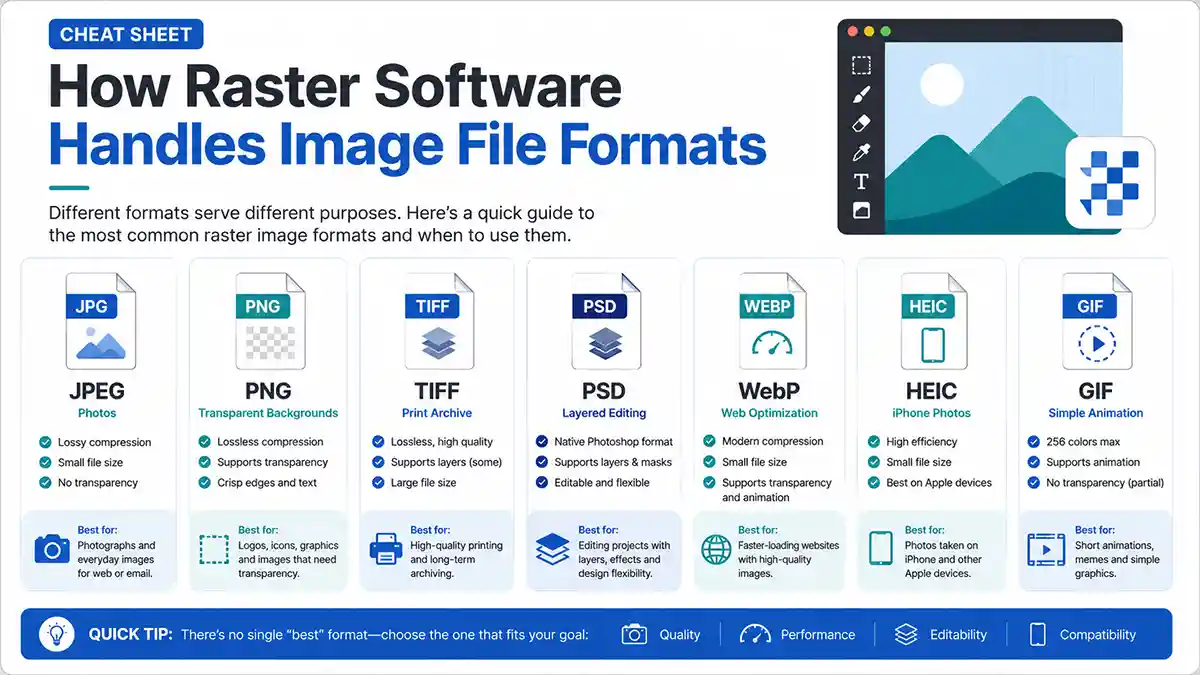
Every raster file format makes a trade-off between compression, quality, and features. JPEG compresses photos small but lossily — resave it repeatedly and quality erodes. PNG is lossless and supports a transparent background, which is why cutouts and masked images ship as PNGs. TIFF is the print-quality archival choice; PSD preserves Photoshop’s live layers; BMP is uncompressed and mostly legacy.
Two modern additions matter in 2026: WebP (smaller web images with transparency) and HEIC (the iPhone’s default capture format), plus GIF for simple animation. Whatever the format, image resolution decides print quality. Screens tolerate 72 dots per inch, but paper demands 300 DPI, so check before you export.
Frequently Asked Questions
What is the best free raster graphics software in 2026?
GIMP for all-round desktop editing, Krita for digital painting, and Photopea if you’d rather work in a browser. All three are fully free — no trials or watermarks.
Is Affinity Photo really free now?
Yes. Since October 2025, the unified Affinity app (including the Photo/Pixel tools) is free with a Canva account; only the Canva AI features require a paid Canva plan.
Can you convert a raster image to vector?
Yes — tracing converts pixels into scalable vector paths (SVG, EPS, AI). Simple logos auto-trace well; detailed images need manual redrawing by a raster-to-vector service.
Which raster tool is best for beginners?
Paint.NET on Windows or Photopea in a browser: both free, with simple menus that make each an ideal basic photo editor for first-timers.
What's the best raster software for Mac or Linux?
On Mac, Pixelmator Pro ($49.99 one-time) or free Affinity. On Linux, GIMP and Krita are the standout — and free — choices.
What is raster graphics software used for?
Photo editing and image retouching, digital painting, compositing, and product photo editing — any task that means changing the pixels of a photograph or bitmap image directly.
Is Adobe Photoshop a raster or vector program?
Photoshop is a raster graphics editor at its core — PSD files are pixel-based layers — though it includes vector helpers like shapes, paths, and type.
What's the difference between raster and vector graphics?
Raster images are pixel-based and resolution-dependent, so they blur when enlarged. Vector graphics are mathematical paths that scale to any size perfectly — ideal for logos.