
You nailed the session. The light was good. Your client loved the poses. Now you are staring at 300 RAW files and a full editing queue that will eat your entire weekend.
That is the real challenge of indoor maternity photography. The shooting part is the fun part. The post-processing is where the hours disappear.
This guide covers the full indoor maternity photo retouching workflow. You will learn what actually needs fixing, what tools to use, and how to decide when it makes more sense to hand the editing off instead of doing it yourself.
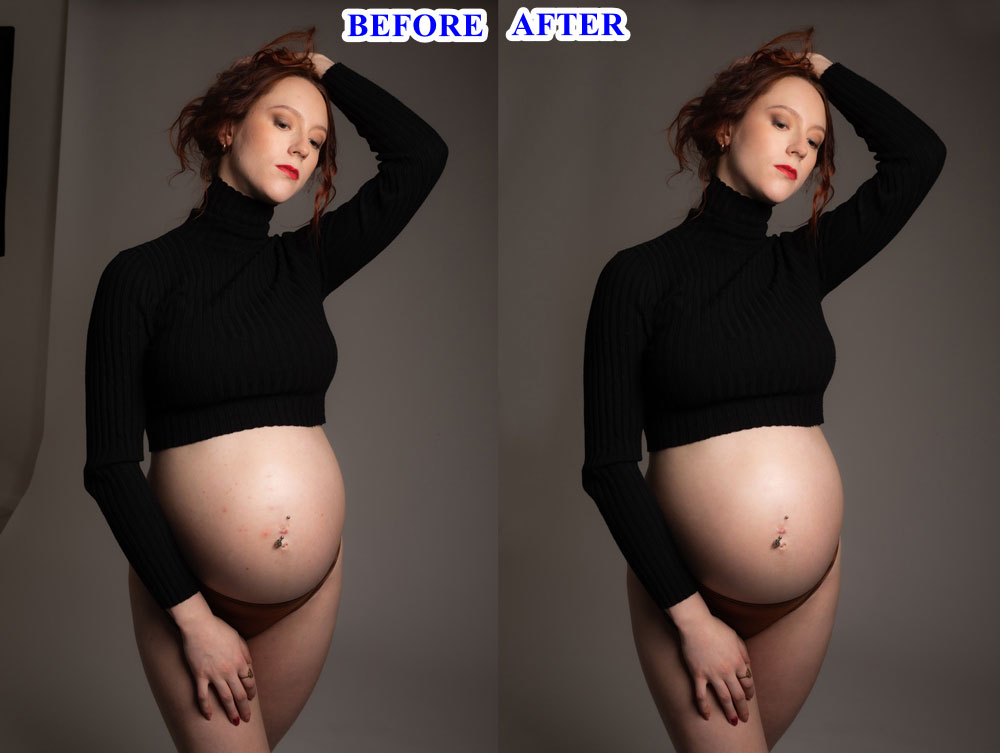
Who this is for: Working maternity photographers who shoot RAW indoors and want faster, better-looking galleries without spending 10+ hours editing every session.
Why Indoor Maternity Retouching Is Different
Outdoor sessions are forgiving. Natural light diffuses. Color temperature stays consistent. The sky does half your editing work for free.
Indoor sessions are not like that. You are dealing with:
- Mixed color temperatures from windows and lamps at the same time
- Higher ISO files that carry visible grain in smooth skin areas
- Overhead artificial lights that create unflattering downward shadows
- No natural diffusion, so harsh shadows are more common
All of that has to be corrected in post. And it takes real time.
Shoot RAW. Always. Indoor sessions with mixed light need the full color data a RAW file captures. JPEG locks in the camera’s in-body processing and strips the flexibility you need in Lightroom.
The 6-Step Indoor Maternity Retouching Workflow
Professional retouching follows a set order. Each step builds on the last. Skipping ahead creates problems you have to undo later.
Step 1: Cull First, Edit Nothing
Review every frame before you open Lightroom. Pick the strongest shots from each pose. You want 60 to 80 images for a full delivery, not 300 mediocre ones.
Culling sets the ceiling on everything that follows.
Step 2: Global Corrections in Lightroom
Fix exposure, white balance, and contrast before you touch anything else using Lightroom editing tools. These decisions affect every image in the gallery.
-
- Exposure: lift mid-tones, recover blown highlights with the Highlights slider
- White balance: correct the Temperature and Tint sliders so skin reads as warm and neutral, not yellow or green
- Tone curve: add a gentle S-curve for depth without hardening the skin
- Contrast slider: avoid it for skin work. Use the curve instead
For indoor sessions with warm artificial light, photographers often shoot around 4,000 to 4,500K. In post, you can push warmer for a cozy feel or pull toward neutral for a cleaner look.
Quick tip: Use Lightroom’s local adjustment brush to correct white balance in different zones of the same frame. A window side and a lamp side need independent corrections.
Step 3: Noise Reduction Without Losing Texture
High ISO files show grain most on smooth surfaces like skin and background areas. Apply luminance noise reduction at 30 to 50 in Lightroom, then use the Detail and Smoothness sliders to keep skin texture.
For ISO 1600 and above, use masking to apply heavier noise reduction in the background and lighter reduction over skin. Lightroom’s AI Denoise feature handles this well in recent versions.
Step 4: Skin Retouching in Photoshop
Move to Photoshop for skin work. This is where professional results separate from amateur ones.
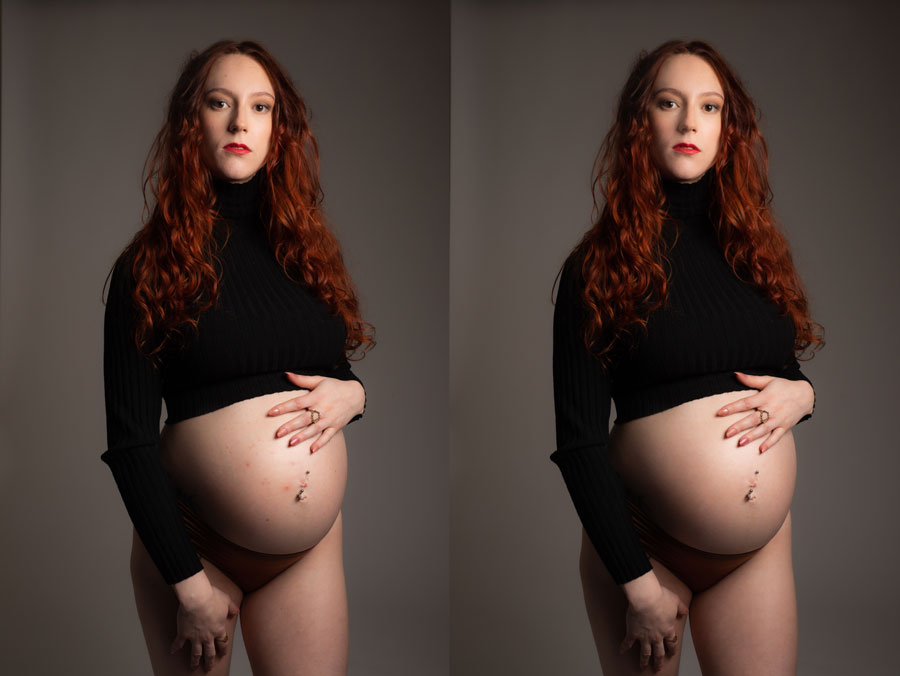
Frequency separation splits the image into two layers: one for color and tone, one for texture. You can even out blotchy or uneven skin without touching the pores. The result looks like the skin was always that smooth. It was not smoothed over it.
Dodge and burn brightens and darkens areas selectively. You can gently enhance the belly’s natural roundness, soften harsh downward shadows under the chin or arms, and add subtle definition where the light falls flat.
Both techniques should be invisible in the final image. If you can see the brush strokes, the retouching is too heavy.
Step 5: Detail and Cleanup
Sharpen the eyes and key detail areas. Clean up background distractions with Photoshop’s Content-Aware tools. Remove temporary blemishes, stray hairs, or anything pulling focus away from the subject.
Keep the sharpening pass last. It locks in every decision made before it.
Step 6: Color Grade and Consistency Pass
Apply your signature color grade across the full gallery. Then compare all selected images together in Lightroom. Skin tone, exposure, and tonal character should read as consistent across every frame.
Clients notice inconsistency fast. A gallery that looks like three different sessions is a problem even if each individual image looks good.

Common Mistakes Photographers Make in Post
Most indoor maternity editing problems start before post-processing begins. Here is what causes them and how to handle them in the edit.
| Mistake | What causes it | Fix in post |
|---|---|---|
| Blown-out highlights on shoulders or belly | Hard overhead light with no recovery data in JPEG | Shoot RAW. Use Highlights slider to recover detail. |
| Green or orange skin tone | Mixed light sources at different color temperatures | Use local WB corrections in Lightroom per zone. |
| Harsh downward shadows on face | Undiffused overhead light | Dodge and burn in Photoshop. Limit: cannot fully replace a soft light source. |
| Waxy, plastic-looking skin | Over-applied smoothing or excessive noise reduction | Use frequency separation. Reduce NR strength. |
| Inconsistent gallery color | Shooting positions that pick up different light at different times | Sync edits in Lightroom. Use HSL for manual matching. |
What You Can Fix in Post (And What You Cannot)
Knowing the limits of post-processing saves you from overselling clients on fixes that are not possible.
You can fix:
-
- White balance and color casts from mixed light
- Exposure and contrast in RAW files
- Grain and noise on high-ISO shots
- Temporary blemishes, redness, and uneven skin tone
- Soft downward shadows with dodge and burn
- Minor background distractions
You cannot fully fix:
-
- Hard-blown highlights with zero data in any channel
- Motion blur from low shutter speed
- Out-of-focus shots where the subject is soft
- Strong, deep shadows cast by poor lighting setup
- Expressions or posing issues
Honest reality: The best retouching in the world cannot fix a technically broken image. The editing floor is set by the lighting and camera decisions made during the session.
DIY vs Outsource: The Real Time Cost
| Task | DIY time estimate | Outsourced |
|---|---|---|
| Culling 300 images to 80 | 1 to 2 hours | Done by you (non-negotiable) |
| Global Lightroom corrections (80 images) | 1.5 to 2 hours | Included in service |
| Skin retouching in Photoshop (per image) | 8 to 15 minutes each | Included in service |
| Full gallery of 80 images retouched | 10 to 14 hours total | Turnaround: 24 to 48 hours |
| Cost in your time (at $50/hr) | $500 to $700 per gallery | Fraction of that |
Think about it: What would you do with 40 extra hours a month? Shoot more sessions. Improve your portfolio. Actually sleep. Outsourcing editing is not giving up quality. It is buying back your time.
Clipping Photo Experts offers white-label maternity retouching so your clients always see your name on the work.
What Professional Retouching Actually Changes
The goal is never to make the image look edited. It is to make it look like the session had perfect light and perfect skin from the start.
Before professional retouching:
-
- Skin looks uneven: warm on the window side, cool or green on the lamp side
- Flat exposure with no depth or separation from background
- Visible grain in shadow areas and across skin
- Minor blemishes or redness pulling attention away from expression
- Each frame looks slightly different from the last
After professional retouching:
-
- Skin tones are warm, even, and consistent across both sides of the face
- Exposure is shaped with a tone curve, subject pops from background naturally
- Noise reduced selectively, skin texture preserved
- Distractions removed, natural glow stays fully intact
- Consistent color grade across every image in the gallery
None of this changes who the subject is. It removes the technical limitations of the camera and the lighting. That is it.
Quick Workflow Checklist: Indoor Maternity Retouching
Save this as a reference for every session.
1. Cull session to 60 to 80 strongest images
2. Set global exposure, highlights, shadows in Lightroom
3. Correct white balance with Temperature and Tint sliders
4. Apply local WB corrections for mixed light zones
5. Add tone curve S-curve for gentle depth
6. Apply luminance noise reduction, protect texture with masking
7. Move to Photoshop for frequency separation skin work
8. Apply dodge and burn for shadow softening and body shaping
9. Sharpen key detail areas, clean background distractions
10. Apply color grade and sync across full gallery
11. Run consistency pass comparing all images together
Pro tip: Build a Lightroom preset for your indoor maternity workflow. Apply it as a first pass on every new session and adjust from there. It saves 30 to 45 minutes per gallery.
Should You Outsource Your Maternity Retouching?
Not every photographer needs to outsource. But if you recognize any of these situations, it is worth considering.
-
- You are shooting more than 3 maternity sessions per month
- Editing time is eating into shooting or client acquisition time
- Your gallery turnaround is running longer than 2 weeks
- You find yourself editing at midnight after a long shooting day
- Your editing quality drops on session 4 because you are tired
A good outsourcing partner matches your editing style, not their own. They deliver under your branding and your timeline. Clients never see behind the workflow.
Clipping Photo Experts specializes in white-label retouching for photographers. You can try a free sample edit before committing to anything.
Related Guides Worth Bookmarking:
1. Indoor Maternity Photoshoot Ideas — posing and setup ideas for indoor sessions
2. Indoor Maternity Photoshoot Lighting Guide — how to light indoor maternity shoots well
3. How to Remove Shadows from Pictures — shadow removal techniques in post
4. How to Remove a Shadow from a Face in Photoshop — step-by-step face shadow removal
5. Photo Retouching Service — professional retouching for photographers
6. Maternity Photoshoot Ideas — session planning and creative direction
7. Couple Maternity Photoshoot Ideas — posing ideas for maternity couple sessions
Ready to Stop Spending Weekends Editing?
You are good at what you do. You should spend your time behind the camera, not buried in Lightroom.
Send us one maternity photo and we will return a professionally retouched sample at no cost. See exactly what our editors do before you place a single paid order.
Start your free trial edit now. See how your maternity edits look with pro retouching before you commit.
No commitment. No credit card. Just a clean, professional retouch so you can decide with your eyes, not guesswork.



Recent Comments